Pokémon GO is a very fun game as long as you can play, of course. Since the game came out at the beginning of July 2016, we have seen all kinds of crazy things with people taking to the streets and flooding parks and squares searching for that rare Pokémon. To play Pokémon GO, yes, it is necessary that your phone’s GPS is operational and that the game can locate your mobile device… Have you heard a GPS not found (11) pokemon go?
How to solve GPS not found (11) pokemon go?
What hasn’t been talked about so much lately, on the other hand, is about all those people who, for one reason or another, are running out of being able to play Pokémon GO, and that really can’t be!
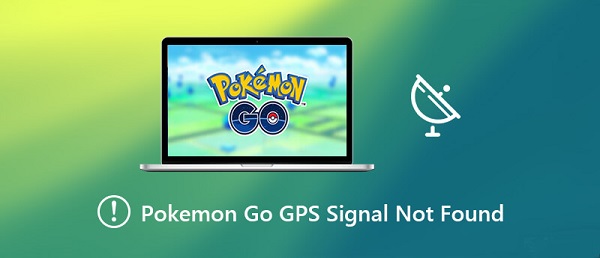
Several people have told me that they are having problems with the GPS signal when playing Pokémon GO, preventing them from enjoying the game in any of its aspects. The GPS above error pops up as soon as the Pokémon GO app is started and the exact message is the following: “The GPS signal could not be found .” Keep reading: Unlocking dark iron dwarves
Pre-checks
I am sure that before finding this tutorial, you will have made these checks, although it never hurts to review them just in case. With a bit of luck, we will find the solution in a matter of seconds:
- Deactivate and reactivate the mobile location service. Unfold the top quick access bar, remove and reactivate the GPS. It may seem silly, but it is often nothing more than a specific failure that is solved simply by doing this.
- Activate airplane mode: This will deactivate all wireless communications on the phone, data and wi-fi connection and the GPS service. Wait 15 seconds, deactivate airplane mode and check if the GPS works normally.
- Restart your device: Having the mobile always on can make it stop working normally and do strange things over time. Restarting the terminal every so often is a highly advisable habit.
- If the GPS error in Pokémon GO persists after restarting the phone, that means that it is not a temporary failure, so we will have to make various adjustments and checks to solve it.
Read more: What is the best kart game today?
Set “High Accuracy” locations
The first thing we have to keep in mind is that Android phones use 3 different methods to establish the location of the device:
- The device only: With this method, the location is determined solely by the GPS.
- Battery saving: Determine the location with wi-fi, Bluetooth or mobile networks.
- High precision: The most complete of all. Set the location with GPS, wi-fi, Bluetooth or mobile networks.
That said, the “high precision” mode works the best. Therefore, the first thing we have to do is make sure that we have this option activated. To do this, if we have a recent version of Android, we must follow the following steps:
- We go to “Settings -> Security and location -> Location,” and we make sure that Google’s location accuracy is activated.
- In Android 10, this setting is on a very similar path. We must go into « Settings -> Location -> Advanced -> Google’s location precision «.
To solve GPS connection problems on mobiles with old versions of Android, do the following:
- Go to “Settings” of your Android device.
- Make sure the “Location” button is activated and click on it.
- Select “Mode” and make sure it is marked “High Accuracy .”
If your device is Android 5.0 or 6.0, you can do it from:
- “Settings” of the phone.
- “Privacy and security. “
- Enter “Location” or “Location” and make sure it is activated.
- Then select “Location method: GPS, wi-fi and mobile networks.”
- Make sure the Pokemon GO app has the location service activated
If the rest of the applications we have on the mobile do not give us problems with the GPS, it is convenient to make sure that we have the location permissions correctly applied in the Pokemon GO app.
Go to « Settings -> Location -> Applications permission «.
Here you will find a list of the applications you have installed, classified into 3 groups: “Allowed, “Allowed only while in use,” and “Without permission. “
If the app appears in the “No permission” list, select it and activate the option “Allow if the application is in use” or “Always allow “.
Keep the wi-fi activated (even if you are not connected)
Pokémon GO works with an assisted location system and uses both the device’s wi-fi signal, the closest mobile phone tower and GPS satellites to locate you in the game. Suppose you only have the WIFi or data signal activated. In that case, the game is less accurate and your character will move by “jumping” and making it less likely that any Pokémon will appear in the surroundings. Always keep the wi-fi activated, even if you are not connected to any wireless network.
Another test that you can also do is install an app that improves your device’s GPS signal quality. Try installing an app like “Active GPS – GPS Booster, “restart the phone and relaunch the game.
Google maps
If none of this works, open Google Maps and then open the Pokémon GO app. Some users indicate that by leaving Google Maps running in the background, the Pokémon GO app is suddenly taken for granted and the error in the GPS signal disappears. That is, if Google Maps manages to locate you, the game most likely will too.
Deactivate the «energy-saving» mode
This is a problem that I have experienced firsthand with a relative. Did you know that many non-essential services are deactivated on the mobile if you have the energy-saving mode activated?
Power saving mode is usually activated automatically on most Android devices when battery power is low, although it can also be activated manually. Enter the Android settings or display the quick access menu to verify that it is deactivated.
The incense trick
Have you noticed if the error in the GPS signal is obtained when you use the incense? Problems have been detected using incense, and in principle, if that is the cause, you can try to solve it by automatically adjusting the date and time on your phone. The date and time settings in Android can be found in « Settings -> System -> date and time. «
Recalibrate the GPS service
Many Pokémon GO users have problems with the GPS signal due to apps like Fake GPS, which allow you to change your location virtually. After using Fake GPS and trying to get back to normal, when starting Pokémon GO, it shows “GPS signal error. “
We can try to fix the problem by recalibrating the GPS service. How? Use the “GPS Status & Toolbox” app on Android and manual resetting if you are an iOS user.
Activate location history
This other check for Android (thanks to the input of a web commenter, Dacdariel ) is interesting and can be a key check to solve the problem with the GPS signal in Pokémon GO. It consists of confirming that the location history is activated. For it:
- We go to « Settings -> Security and location -> Location «.
- Click on “Location History Google ‘and ensure that’ tab history is enabled.
- If we have a mobile with an old version of Android:
- We go to the phone’s settings menu and enter « Location. «
- Click on « Google location history. «
- Finally, we make sure that the “Activated” tab is enabled, as seen in this other screenshot.
Disable test locations
If you are an Android user, go to the settings menu, to “System -> Phone information,” and click on the build number 7 times to bring up the developer options.
Next, we make sure that no app is selected (especially the Pokemon Go game) in “Choose an application to simulate location. ” In some versions of Android, we will also have to disable the option “test locations” if this option is available (usually only appears in old versions of Android).
Solution for GPS not found (11) pokemon go (iOS)
If you are playing Pokémon GO from an iPhone you can try the following:
Leave wi-fi on
Make sure you have the wi-fi signal activated even if you are not connected to any wireless network. Apple also uses wi-fi mapping as a location system.
If you are inside Pokémon GO, you can activate the wi-fi by dragging from below the screen up to remove the command menu. Press the wi-fi icon and make sure it is activated.
Keep Google Maps open
As we have indicated in Android, if this does not work, open Google Maps and then open the Pokémon GO app. Some users indicate that by leaving Google Maps running in the background, the Pokémon GO app is suddenly taken for granted and the error in the GPS signal disappears.
Use of incense
As we have commented in the tests for Android, problems with the use of incense have been detected, and in principle, if that is the cause, you can try to solve it by automatically adjusting the date and time of your phone.
From iOS, you can adjust the date and time automatically from “Settings -> General -> Date and time” and activating “Automatic setting. “
I have not explained to justify this change in the date/time setting, but it seems that it solves the problem in many cases.
Reset and recalibrate the GPS service
If the GPS service is not working properly, you can try to recalibrate it. In the case of iOS, to reset the GPS service, do the following:
Press twice on the Home button. This will show you a list of all the apps that are running. Close all apps by discarding them with your finger.
- Go to the phone settings and activate airplane mode.
- Go to « Settings -> General -> Reset -> Reset network settings «. Remember that you will have to re-enter your wi-fi passwords.
- Once the reset is done, go to “Settings -> Privacy -> Location” and deactivate and reactivate “Location “.
- To finish, go to ” Settings -> Privacy -> Location -> System services ” and deactivate the ” time zone “.